
Selector explorer
The Selector explorer is the window where you refine a selector while seeing live what it finds. It opens from the pencil of the selector field, by double-clicking the field or at the end of a UI Discover capture, and it works the same for web pages and Windows applications.
It is a window of its own: you can keep it open next to the page or the application, move it to another screen and go back to the Designer without closing it.
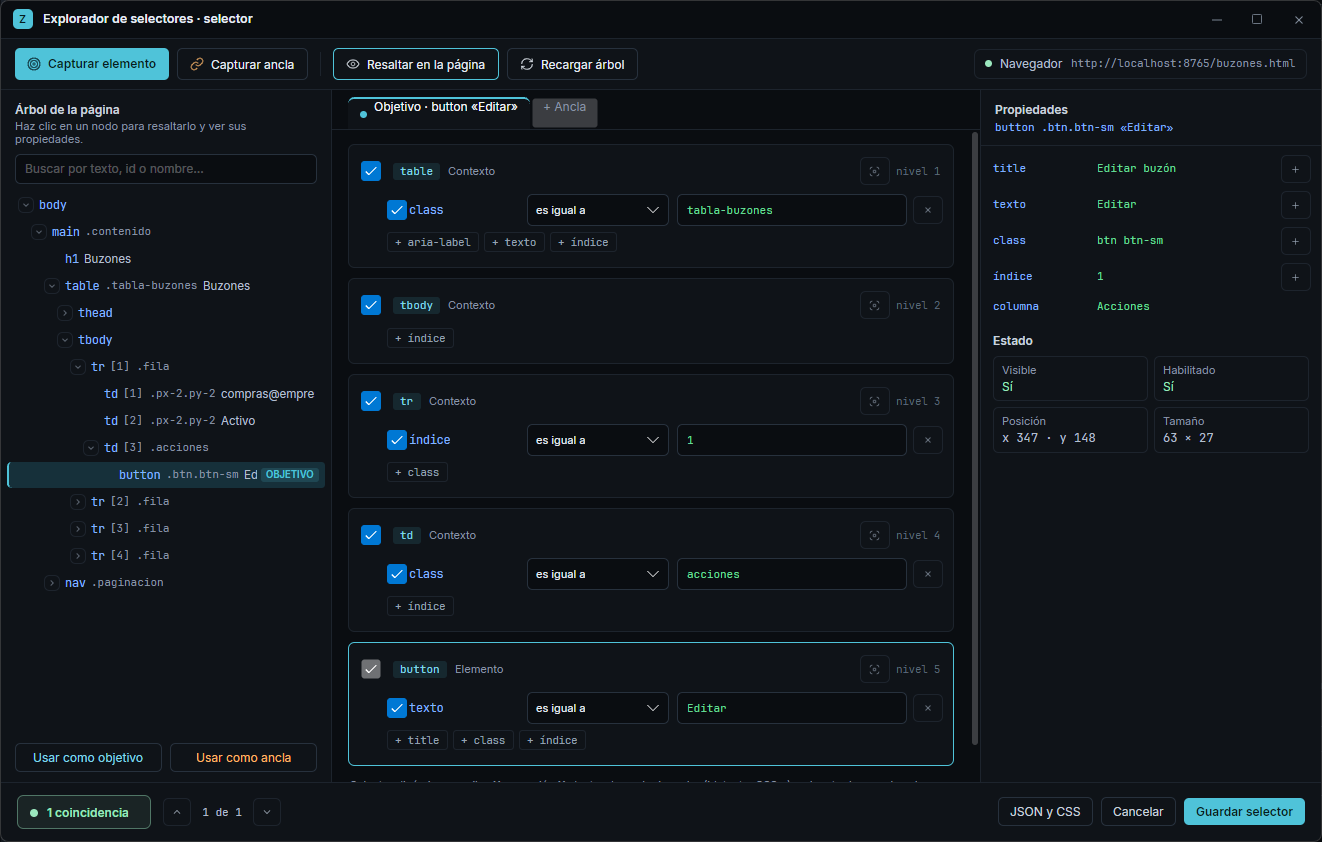
The three columns
Section titled “The three columns”- Tree (left): the structure of the page or window, open down to the element. The TARGET mark shows the element the robot would find and ANCHOR its anchors. Clicking a node highlights it on the screen and shows its properties; Use as target and Use as anchor take that node for the selector.
- Selector (middle): one tab for the target and one for each anchor. Each node of the path is a card with its attributes.
- Properties (right): everything the node selected in the tree has (text, id, class, table column, value…) and its state: visible, enabled, position and size. The + of a property adds it to the matching node of the selector.
Tune the selector
Section titled “Tune the selector”On each card:
- The node checkbox decides whether that level counts. Unchecking a container that adds nothing makes the selector more tolerant of structure changes. The last node (the element) always counts.
- The checkbox of each attribute decides whether it is compared. Unchecked attributes are not saved.
- The comparison of each attribute: equals, contains, starts with, wildcard (
*anywhere) or regular expression. SoOrder 1024becomes “starts withOrder” and works for every order. - The value accepts
{{ expression }}: the robot resolves it at run time. For example, the row text can be{{ email }}. - The + attribute chips offer what the element has and is not in the selector yet, including its visible text.
What you save is the same selector as always: comparisons are written with the notation the engine already understands (* and /…/), so a selector tuned here works in any robot version that already supported it.
Live matches
Section titled “Live matches”At the bottom, the explorer tells you how many elements the selector finds with every change you make and highlights them numbered on the screen: the chosen one in cyan, the others in amber and the anchors in blue. The arrows go through the matches and open the tree at each one.
| Status | What it means |
|---|---|
| 1 match (green) | The selector finds a single element: the robot will act on it. |
| N matches · uses #X (green) | There are several alike and the anchor says which one: the robot uses that one. |
| N matches (amber) | There are several and nothing decides between them: add an anchor or an attribute that sets them apart. |
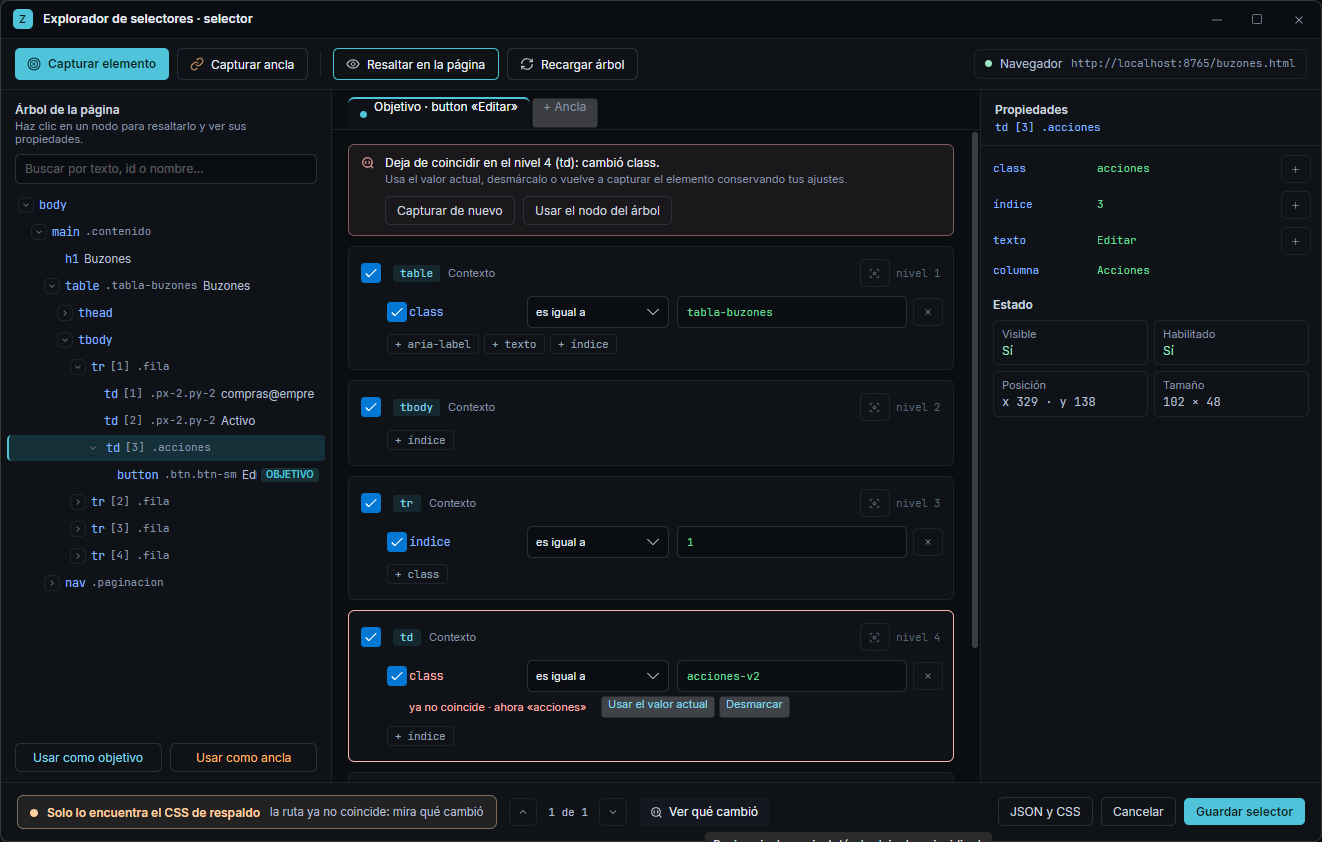
| Found only by the backup CSS (amber) | The path no longer matches and only the safety net answers: find what changed. |
| No matches (red) | There is no element with that selector on the open screen. |
Highlight on the page turns highlighting on or off; Reload tree reads the screen again if it changed.
Anchors by text
Section titled “Anchors by text”When there are several identical elements —the Edit button of each row of a table— the anchor says which one: “the Edit of the row that says sales@company.com”.
- Search or pick in the tree the cell (or the row) with the text and click Use as anchor, or use Capture anchor to point at it on the screen.
- The anchor is identified by its text, in whatever row or position it is: its indexes are left unchecked.
- The explorer saves where the anchor was relative to the target. At run time, the robot picks the target that is in that same position relative to the anchor.
The anchor text can come from a variable: {{ email }}. That way the same selector works for any row.
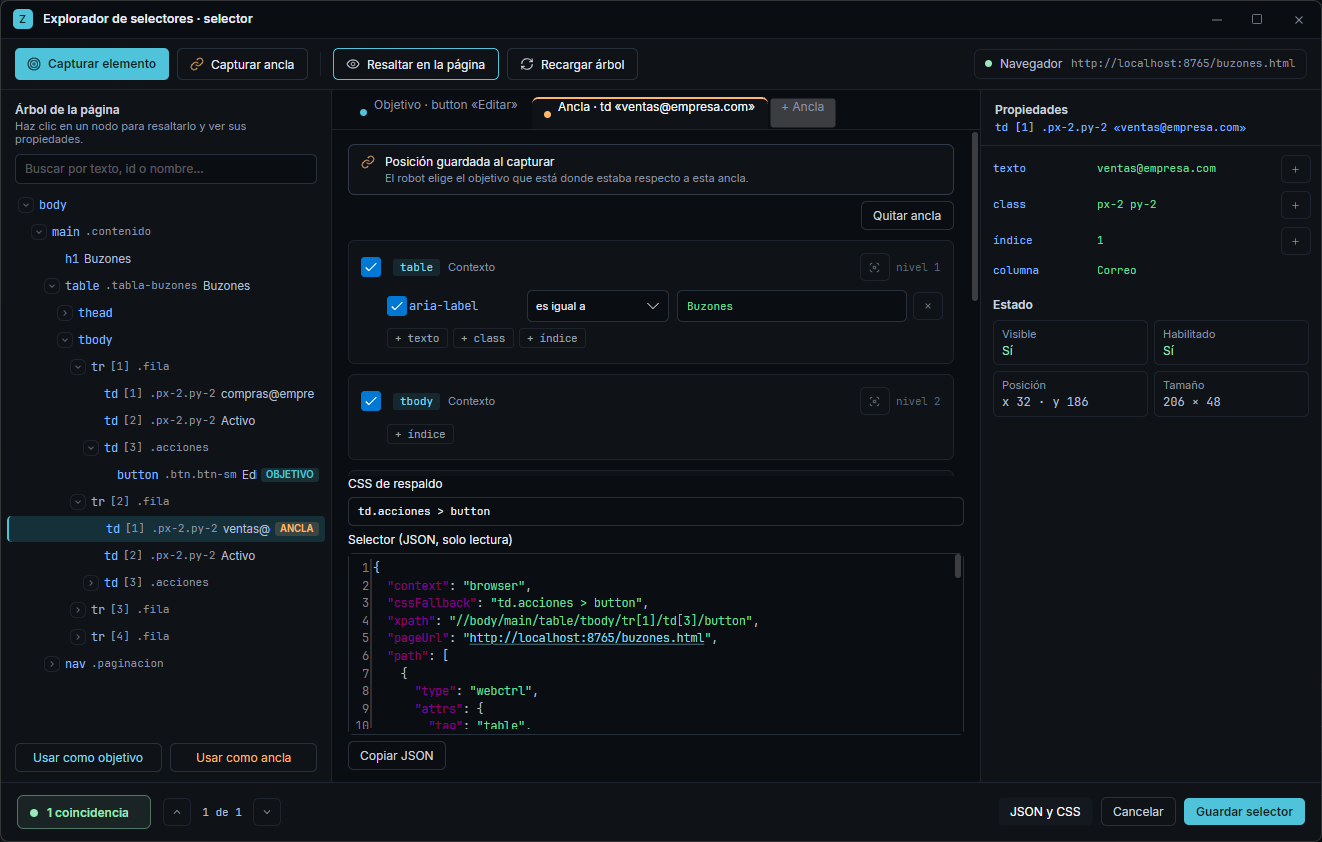
If you change or repair the target, the anchors measure their position again with both in view.
Search the tree
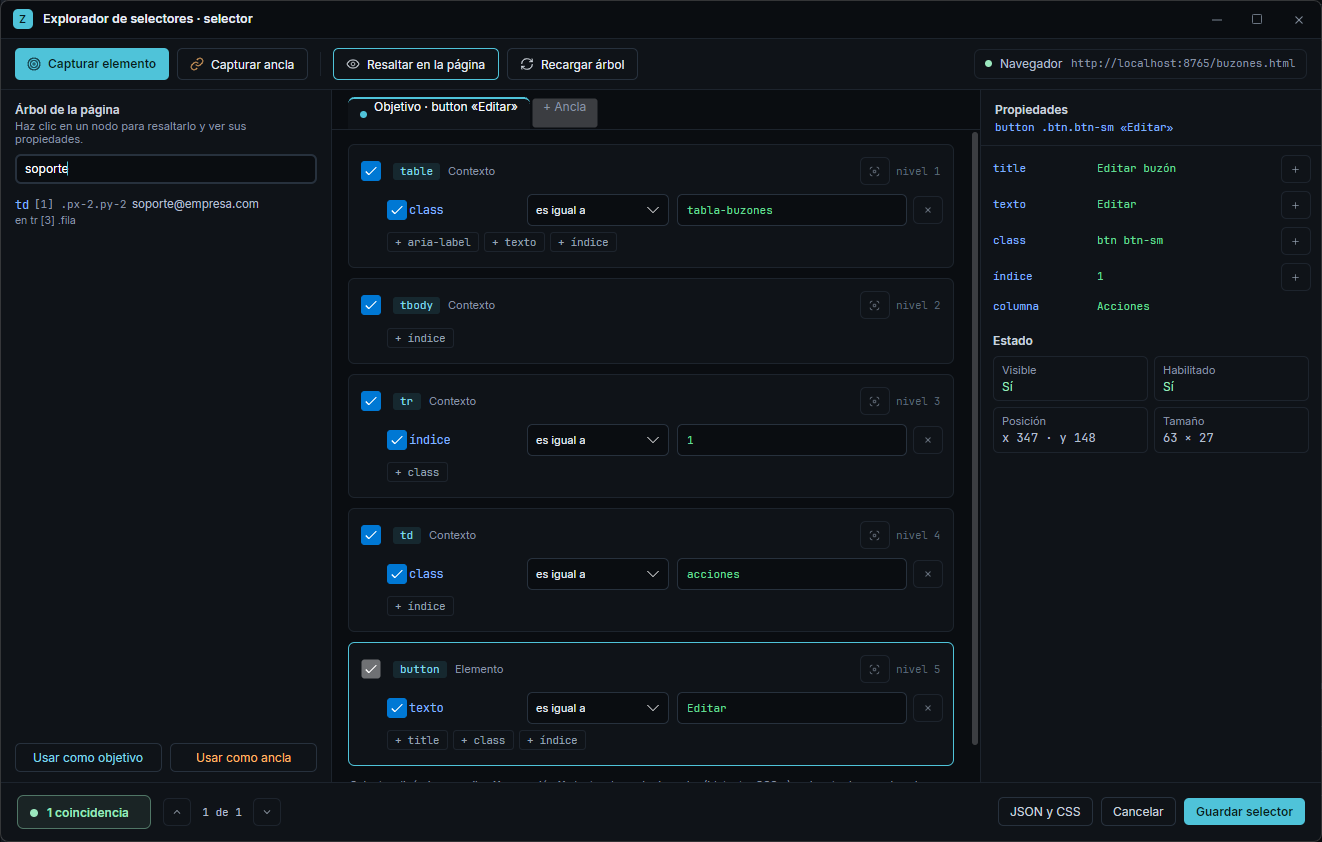
Section titled “Search the tree”The Search by text, id or name… box finds on the open screen the elements whose text, accessible label, id or name contain what you type, with the container each one is in. Clicking a result opens the tree down to it and highlights it. Esc goes back to the tree.
Test with values
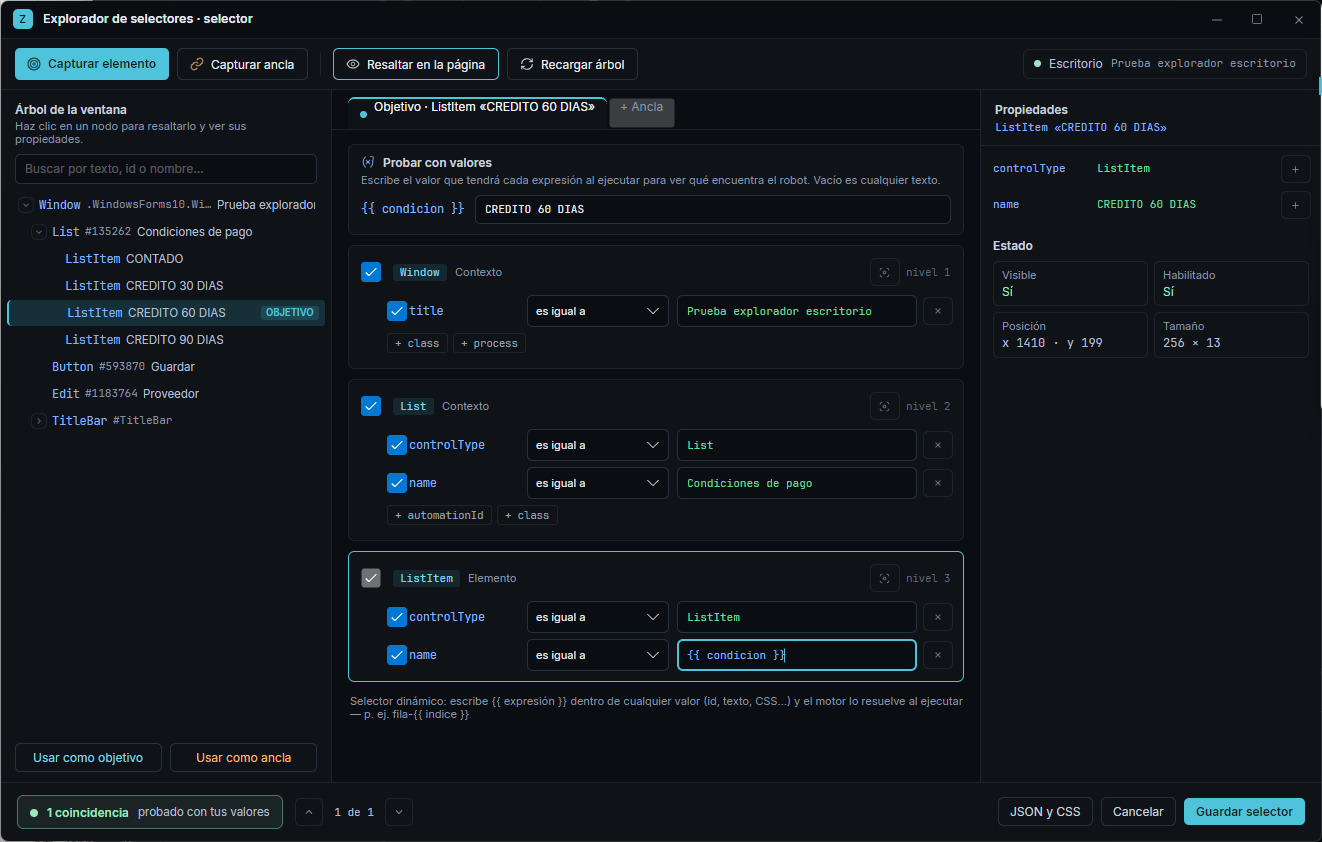
Section titled “Test with values”If the selector uses {{ expressions }}, the Test with values card appears: type the value each expression will have at run time and the explorer counts the matches with that value. Empty means any text. Test values are not saved in the selector.
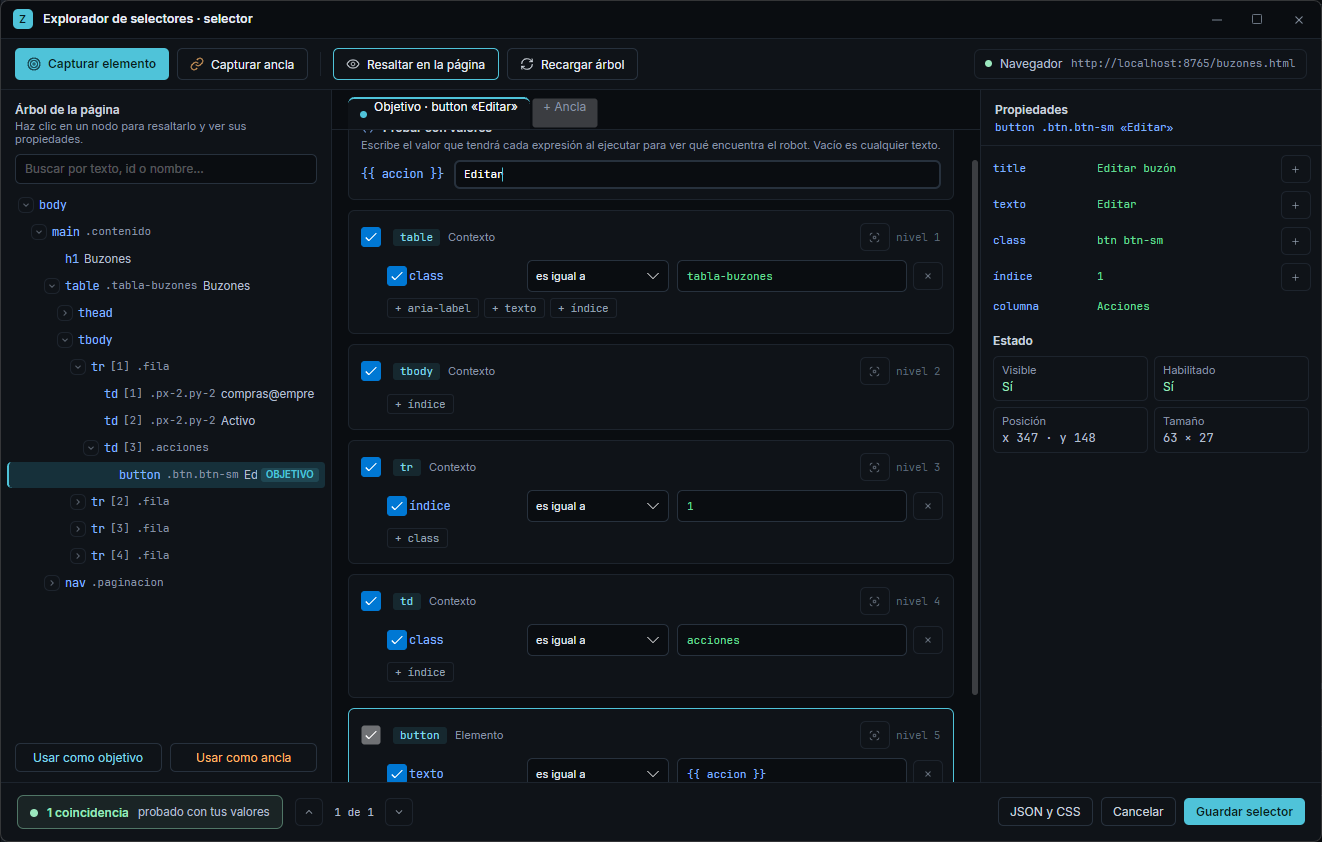
While debugging, when you stop at a breakpoint you can open the explorer from the selector’s pencil: the expressions are filled with the real values of the run. If the explorer was already open, they are filled when the run pauses. While paused the selector is tested but not saved: stop the run to save.
Find what changed and repair
Section titled “Find what changed and repair”When the application changes and the selector no longer finds the element, click Find what changed. The explorer goes through the path level by level until the first one that no longer matches, tries each attribute of that level and shows you:
- the level and the attribute that changed, marked in red;
- the value the element has now, taken from the one that leads to the target or, if there are several, from the one most similar to what you were looking for.
To repair it:
- Use current value replaces the attribute value with the current one.
- Uncheck stops comparing that attribute.
- Capture again or Use the tree node take the element as it is now keeping your adjustments: unchecked boxes, comparisons that still apply and
{{ }}values.
In desktop applications
Section titled “In desktop applications”With a desktop selector, the tree is the one of the application window (Windows UI Automation) and the nodes carry controlType, name, automationId, class… The explorer opens next to the application window if it fits on the screen and brings it to the front, so the highlight lands on the element. When you pick a node in the tree or go to a match, the application comes to the front again without taking the focus from the explorer.
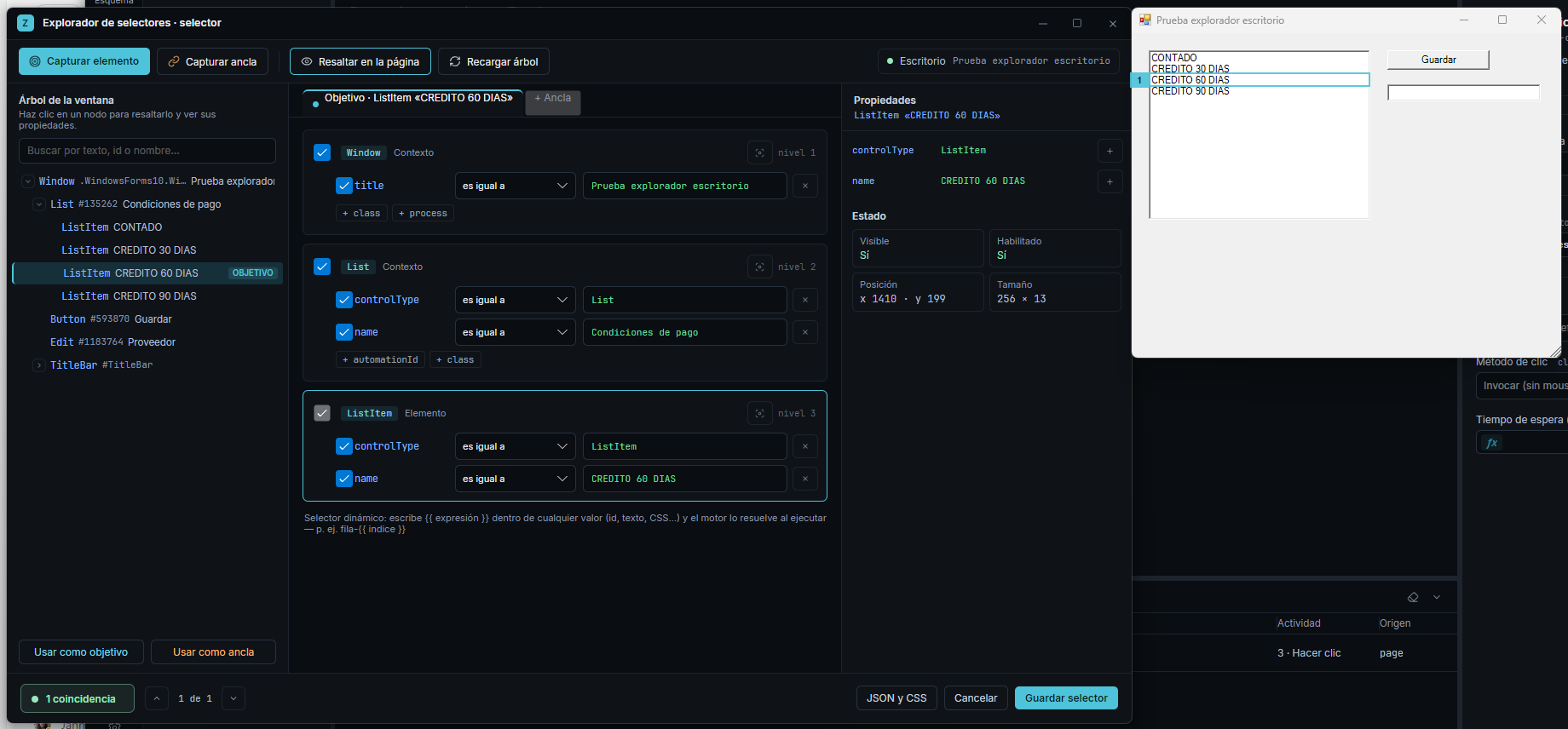
Desktop matches are counted with the same rules the robot uses at run time.
Save selector (or Ctrl+S) puts the selector in the activity; Cancel or Esc close without changing anything. JSON and CSS shows the full selector (read-only, with Copy JSON) and the backup CSS, which you can edit.
Next steps
Section titled “Next steps”- Selectors: what a selector is and how to make it robust.
- UI Discover: capture elements by pointing with the mouse.
- Debugging: breakpoints and variable values.