
UI Discover
Zoan UI Discover captures selectors by pointing with the mouse: you open the screen you want to automate, click the element and the Designer builds a robust selector, with the context path down to the element and a fallback CSS. You don’t have to write it by hand.
The Designer is shown in Spanish in the captures; the English label follows in parentheses where it helps.
The selector field
Section titled “The selector field”Every activity that acts on an element —Click, Type Text, Get Text, the Desktop ones…— has a selector parameter in Properties:
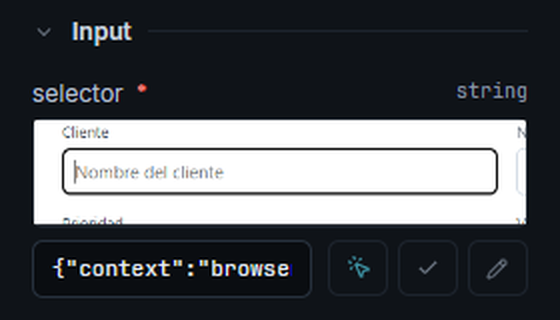
- The thumbnail shows the captured element, so you can tell at a glance what each activity selects.
- The field shows the selector and is read-only: the selector is captured and refined in the editor, not typed. Double-click the field to open the editor.
- Pick on screen (the pointer) starts a capture. In a browser activity it captures on the page; in a desktop or SAP one (Pick desktop element), in the Windows application.
- Validate (✓) looks for the element on the open page (browser only).
- Edit selector (pencil) opens the Selector explorer.
Capturing never saves blindly: the result opens in the explorer, you review it and it only lands in the activity when you click Save selector.
The browser extension
Section titled “The browser extension”Capturing on web pages uses the Zoan UI Discover extension for Chrome and Edge.
- With the Zoan installer there is nothing to do: the installer registers the extension and, the next time you open Chrome or Edge, the browser downloads it from the Chrome Web Store and asks you to confirm Enable extension once.
- By hand: install it from the Chrome Web Store. It works for Chrome and Edge; in Edge accept Allow extensions from other stores if asked.
The Discover chip in the Designer status bar turns green when the extension is connected. If it is not, clicking the chip opens the store page to install it.
Capture on a web page
Section titled “Capture on a web page”- Open the page you want to automate in Chrome or Edge and leave it in the right state: signed in and on the right screen. You capture what you see.
- In the activity, click Pick on screen (the pointer). The Designer minimizes.
- A Selecciona un elemento (Select an element) bar appears on the page. As you move the mouse, the element under the cursor is highlighted with its tag (for example
input#cliente). - Click the element. The Designer comes back with the Selector explorer open.
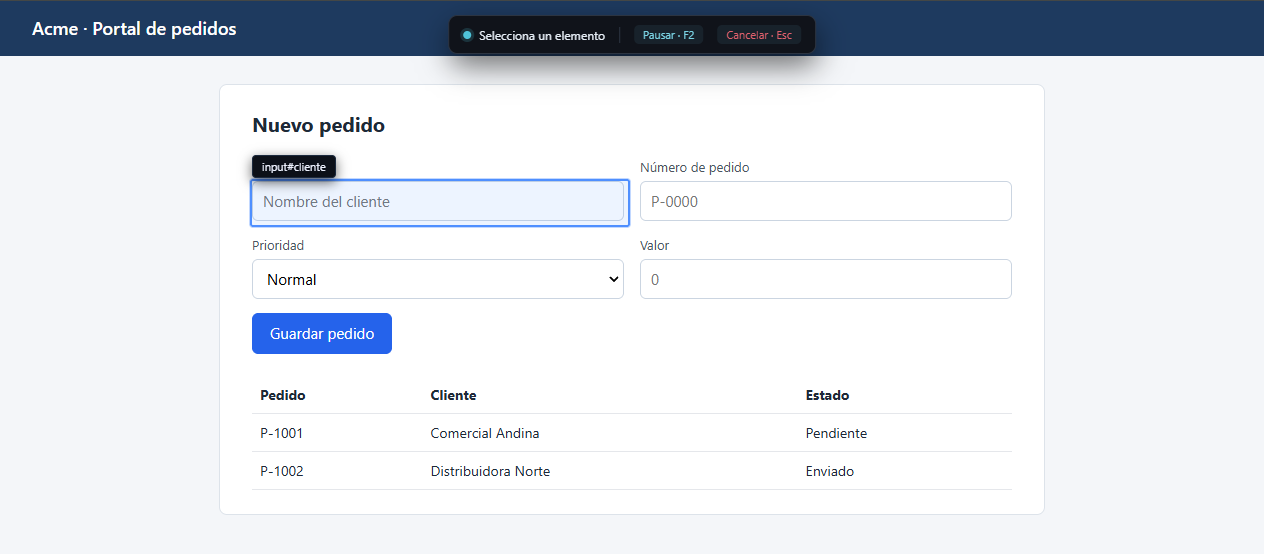
- Pausar · F2 (Pause) freezes the highlight for a few seconds so you can open a menu or a dropdown and capture what appears inside.
- Cancelar · Esc (Cancel) cancels the capture.
- If the Designer gets no capture within 2 minutes, it cancels it and tells you. Then check that the Discover chip is still green.
Capture in a desktop application
Section titled “Capture in a desktop application”For Desktop and SAP activities, Pick desktop element uses the Designer’s built-in picker, based on Windows UI Automation. No extension needed.
- Click Pick desktop element (the pointer). A layer covers the screens and the Selecciona un elemento bar appears.
- Move the mouse over the application: the control under the cursor is highlighted (button, field, cell…).
- Click to capture it, or press Esc to cancel. Pausar · F2 works as in the browser: it freezes the highlight so you can open a menu.
- On a SAP GUI window, the picker asks SAP’s scripting tree instead of UI Automation. It needs an open SAP session; if there is none, the Designer tells you before starting.
- On desktop Java applications (Swing/AWT), the picker turns on the Java Access Bridge automatically; the bar shows “Conectando con la aplicación Java…” (Connecting to the Java application). If the bridge was just enabled, restart the Java apps that were already open.
Tune what you captured
Section titled “Tune what you captured”What you capture opens in the Selector explorer: the tree of the page or window, the selector node by node with a checkbox and a comparison per attribute, the anchors, and how many elements the selector finds, highlighted on the screen. There you also search the tree, test the selector with variable values and repair it when the application changes.
SAP selectors are tuned in the usual nodes-and-JSON editor.
Validate
Section titled “Validate”Validate (✓), next to the field, looks for the element on the open page with the current selector, without opening the explorer. The result says Element found on the page in green or Element NOT found in red, and the page highlights the element for a moment according to how it found it:
- Green: through the node path. It is the result you want.
- Orange: only through the fallback CSS. Worth reviewing in the explorer.
- Purple: only through XPath, which breaks with any structure change.
The detail of each route is in Selectors › Resolution order. On desktop, the explorer shows the matches live.
Record actions
Section titled “Record actions”With Record, in the top bar, you don’t capture one element at a time: you go through the task once in the application and the Designer turns it into activities, each one with its selector already captured.
- Open the playbook where you want the steps and click Record.
- Work as usual in the browser (with the extension connected) or in a desktop application: clicks, typing, checkboxes, drop-down lists, navigation. In SAP GUI, buttons, fields, tabs and transactions are recorded too.
- Each action shows up as an activity on the canvas and a notice confirms how many you have so far.
- Click Stop recording to finish.
- Desktop steps are grouped inside one scope per application (Win Attach or SAP — Attach), ready to run.
- Passwords are not recorded: the Designer tells you so and that step is left for you to fill with a credential.
- In a headless project only browser actions are recorded.
Then review what you recorded: adjust changing texts with wildcards and act on the fragile selector warnings in the Problems panel.
- Get the screen ready before capturing: signed in and on the right view.
- Aim for 1 match in the explorer, or for an anchor to decide among several.
- Simplify: remove extra attributes and turn variable text into wildcards or
{{ }}. - Save only when you’re happy with the selector: until you click Save, the activity keeps the previous one.
Next steps
Section titled “Next steps”- Selectors: what you capture and how to make it robust.
- Selector explorer: tune, test and repair what you captured.
- Browser and Desktop: the activities that use these selectors.