
Built-in templates
The Designer ships four templates, organized by kind of work rather than by use case: they work the same for invoices, orders, résumés or anything else. How to create them and how their Config.xlsx works: Project templates.
| Template | Use it when… | You write |
|---|---|---|
| Transactional process | There is a list of things to work, one by one: rows, files or queue items. | ProcesarElemento |
| Queue dispatcher | You want to spread the work across one or more robots through a Zoan Cloud queue. | PrepararElemento |
| Sequential process | The task runs start to finish: a report, a sync, a backup. | Pasos |
| Human-in-the-loop process | A person has to decide (approve, choose, validate) and the robot continues based on the decision. | PrepararDecision, SiAprueba, SiRechaza, SiVence |
The first three bring Iniciar, Recuperar and Finalizar. In the Transactional process and the Sequential process of a Windows project, those playbooks open your application (RutaAplicacion), force-close and reopen it if it hangs (ProcesoAplicacion), and take a screenshot to understand the failure (CarpetaCapturas). In the Queue dispatcher and in headless projects they are the places to open or close whatever the process needs, without a desktop.
The playbook names and Config keys are in Spanish, as they appear in the project.
Transactional process
Section titled “Transactional process”For any list of things to work. Each item runs with retries and recovery, one failure never stops the rest and everything lands in a log.
flowchart LR
  A[InitAllSettings] --> B[Iniciar] --> C{Source}
  C -- Excel or folder --> D[ObtenerElementos] --> E[ProcesarElemento<br/>for each one]
  C -- Queue --> F[ProcesarCola] --> E
  E --> G[Log] --> H[Finalizar]
- ObtenerElementos turns the source into a list: each Excel row is a dictionary with one key per column; from a folder, each file brings
Id(its name) andRuta. - ProcesarElemento is what the robot does with one item. Read its data with
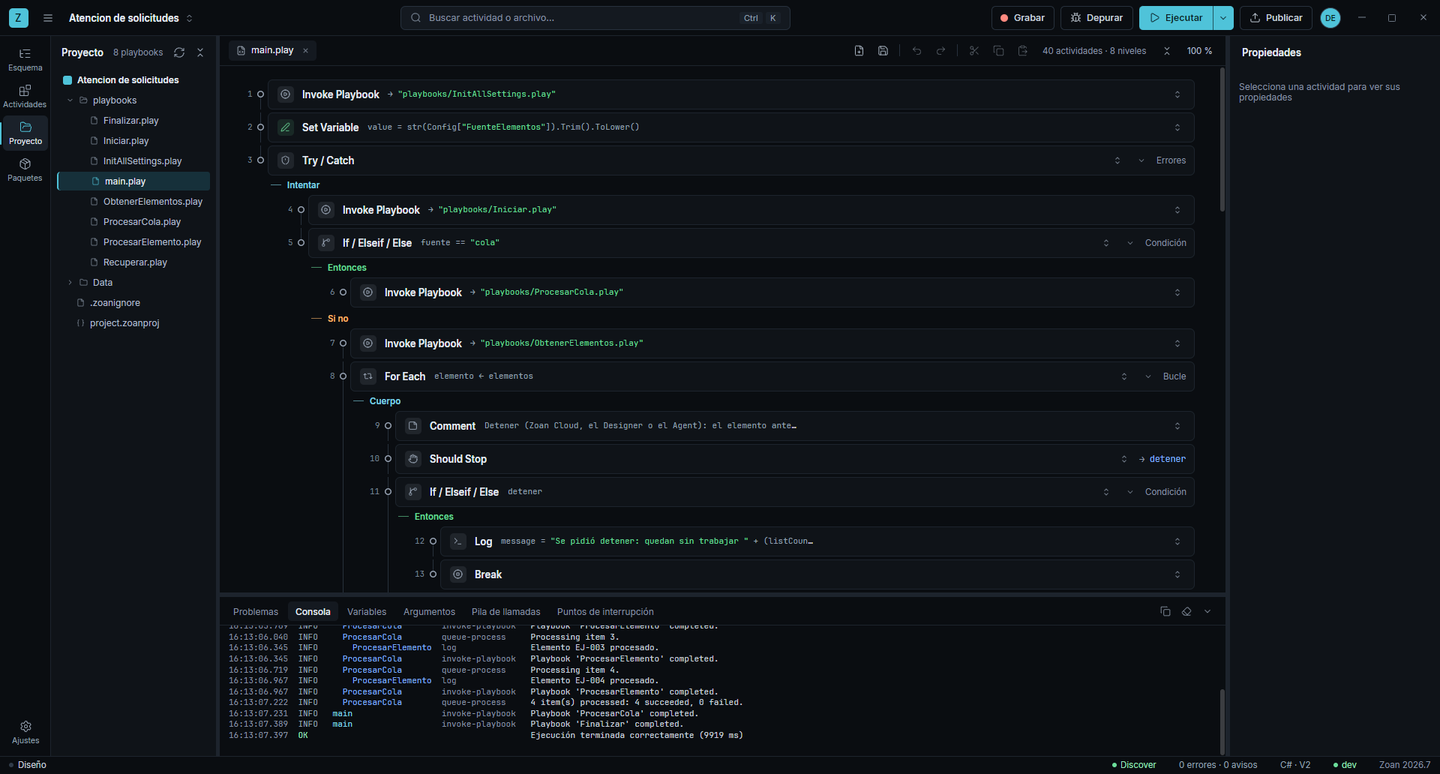
elemento["Column"]. - With the Cola source, ProcesarCola takes items from the queue until it is empty. Several robots can work the same queue at once, and the queue retries system errors according to its settings.
- Before each item it checks Should Stop: if someone asked to Stop, it finishes the current item and closes cleanly.
- It leaves
salida/bitacora-YYYYMMDD-HHMM.xlsxwith each item’s result:OK,NEGOCIOorSISTEMA.
| Key | Default | What it does |
|---|---|---|
FuenteElementos | Excel | Excel, Carpeta or Cola. |
OrigenElementos | empty | Path of the Excel file or the folder. Empty = the samples in Data/ejemplos. |
HojaElementos | Elementos | Excel sheet (one row per item; the Id column identifies them). |
PatronArchivos | *.* | Which files of the folder are worked. |
Cola | empty | Zoan Cloud queue, only with the Cola source. |
CarpetaSalida | empty | Where the log goes. Empty = the project’s salida folder. |
ReintentosSistema / EsperaReintentoMs | 2 / 2000 | Retries after a system error and the wait between them (Constants sheet). |
Queue dispatcher
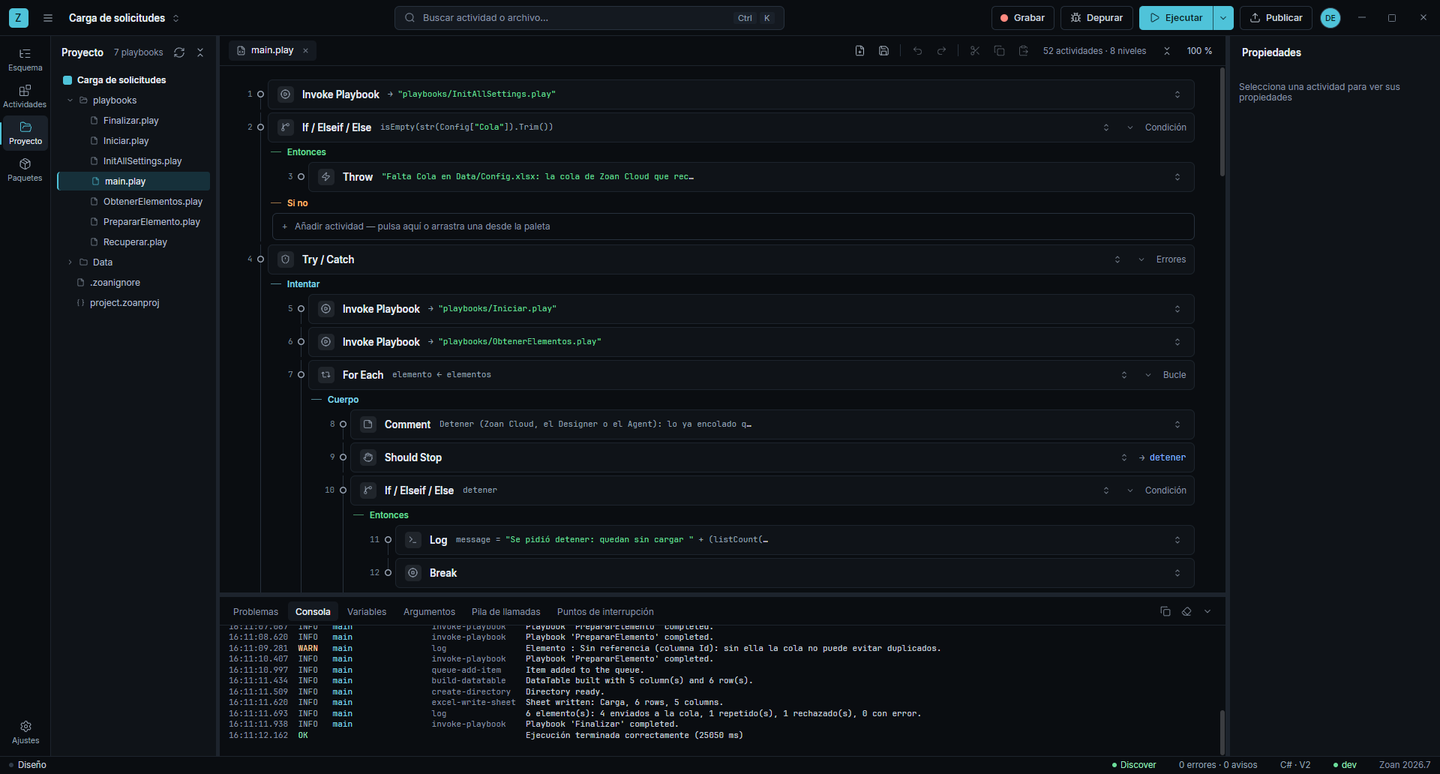
Section titled “Queue dispatcher”To spread the work: reads an Excel file or a folder and puts each item in a Zoan Cloud queue, where one or more robots pick it up. Pair it with the Transactional process using the Cola source: one loads, the other works.
- PrepararElemento validates one item and builds what travels in the queue (
contenido, which the worker reads initem.SpecificContent) and itsreferencia. If a piece of data prevents queuing it, raise a business error: the item ends RECHAZADO and the load goes on. - The reference is the item’s key in the queue (the
ColumnaReferenciacolumn). If that reference is already in the queue, for example from an earlier load, the queue returns the existing item and does not create another. Running the load again never duplicates. - A reference repeated within the same source ends REPETIDO. An item with no reference is rejected, because without one duplicates cannot be prevented.
- A failure while queuing (the network, Zoan Cloud) is retried. If some item still did not make it, the execution ends failed so someone notices, and running it again loads only what is missing.
- It leaves
salida/carga-YYYYMMDD-HHMM.xlsxwith each item’s result.
| Key | Default | What it does |
|---|---|---|
Cola | empty | Required. The queue that receives the items (create it in the portal, under Queues). |
FuenteElementos | Excel | Excel or Carpeta. |
OrigenElementos | empty | Path of the Excel file or the folder. Empty = the samples in Data/ejemplos. |
HojaElementos | Elementos | Excel sheet. |
PatronArchivos | *.* | Which files of the folder are loaded. |
ColumnaReferencia | Id | Column with each item’s unique key. From a folder, Id is the file name. |
Prioridad | empty | high, normal or low. Empty = the queue’s. |
CarpetaSalida | empty | Where the log goes. |
ReintentosSistema / EsperaReintentoMs | 2 / 2000 | Retries while queuing. |
This is the Transactional process working what was loaded:
Sequential process
Section titled “Sequential process”For tasks that run start to finish. It retries system failures, always closes what it opened and makes clear in Zoan Cloud whether it finished well.
- Pasos are the process steps, in order. A business error stops it without retrying; a system error runs Recuperar and retries.
- Finalizar always runs. If there was an error, it is re-raised after Finalizar: the execution ends failed in Zoan Cloud and alerts whoever is in charge.
- If a step is long and it helps to be able to stop between steps, check Should Stop before the next one.
Keys: the Windows application ones (RutaAplicacion, ProcesoAplicacion, CarpetaCapturas) and the retries (ReintentosSistema, EsperaReintentoMs).
Human-in-the-loop process
Section titled “Human-in-the-loop process”For any step where a person decides. The decision arrives from the Zoan Cloud Tasks inbox and the process continues down the matching branch.
flowchart LR
  A[PrepararDecision] --> B[Task for RolDecide]
  B -- no ProcesoContinuacion --> C[The robot waits] --> D[Continuar]
  B -- with ProcesoContinuacion --> E[The robot ends] -. the decision resumes the process .-> D
  D --> F[SiAprueba]
  D --> G[SiRechaza]
  D --> H[SiVence]
- PrepararDecision gathers what the person needs to see: title, description, data (key → value) and up to 10 attached files.
- A human task is created for the
RolDeciderole, with theOpcionesDecisionoptions and a deadline if you setPlazoHoras. - Without
ProcesoContinuacion, the robot waits for the decision up toEsperaDecisionMinutos(if nobody decides, it cancels the task). That is how you try it end to end from the Designer. - With
ProcesoContinuacion(the name of the published process, usually this same one), the robot ends as soon as it creates the task. When someone decides or the deadline passes, Zoan Cloud resumes that process withdecision,commentanddata. No robot stays busy waiting. - Continuar routes the decision: the first option goes to SiAprueba, any other to SiRechaza, and an expired one to SiVence.
| Key | Default | What it does |
|---|---|---|
RolDecide | empty | Required. Code of the Zoan Cloud role that receives the task. |
OpcionesDecision | Aprobar, Rechazar | Options separated by commas. The first one leads to SiAprueba. |
PlazoHoras | empty | Hours to decide before going to SiVence. Empty = no deadline. |
ProcesoContinuacion | empty | Published process the decision resumes. Empty = the robot waits. |
CatalogoTareas | decisiones | Groups the tasks in the inbox. |
EsperaDecisionMinutos | 30 | Without ProcesoContinuacion: how long the robot waits (Constants sheet). |