
Project templates
A template is a starting project with the structure already solved: error handling, retries, a safe close and the log. You only write the part that is specific to your process, and you start from a proven structure:
- They ask nothing at creation. Everything you tune lives in the project’s
Data/Config.xlsx, with a default value and a description for each key. - They run exactly as they will in production. There are no special modes: what you see in the Designer is what the unattended robot does.
- They adapt to the platform. A Windows project also gets the opening, recovery and closing of your application; a headless one gets the version without a desktop.
Create a project from a template
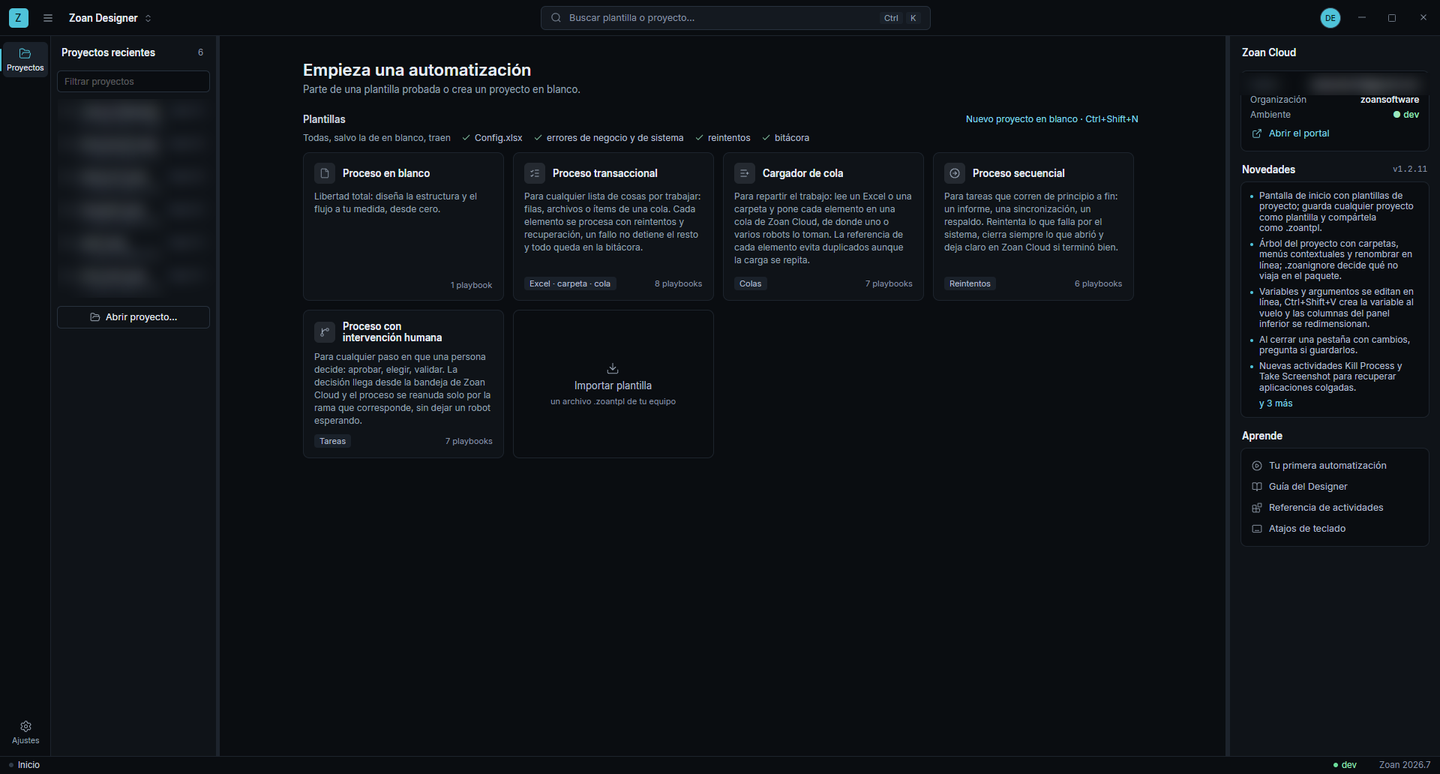
Section titled “Create a project from a template”The Designer start screen shows the gallery: Blank process first, then the built-in templates and your team’s (there is also New blank project · Ctrl+Shift+N above the gallery). All of them except the blank one include Config.xlsx, business and system errors, retries and a log.
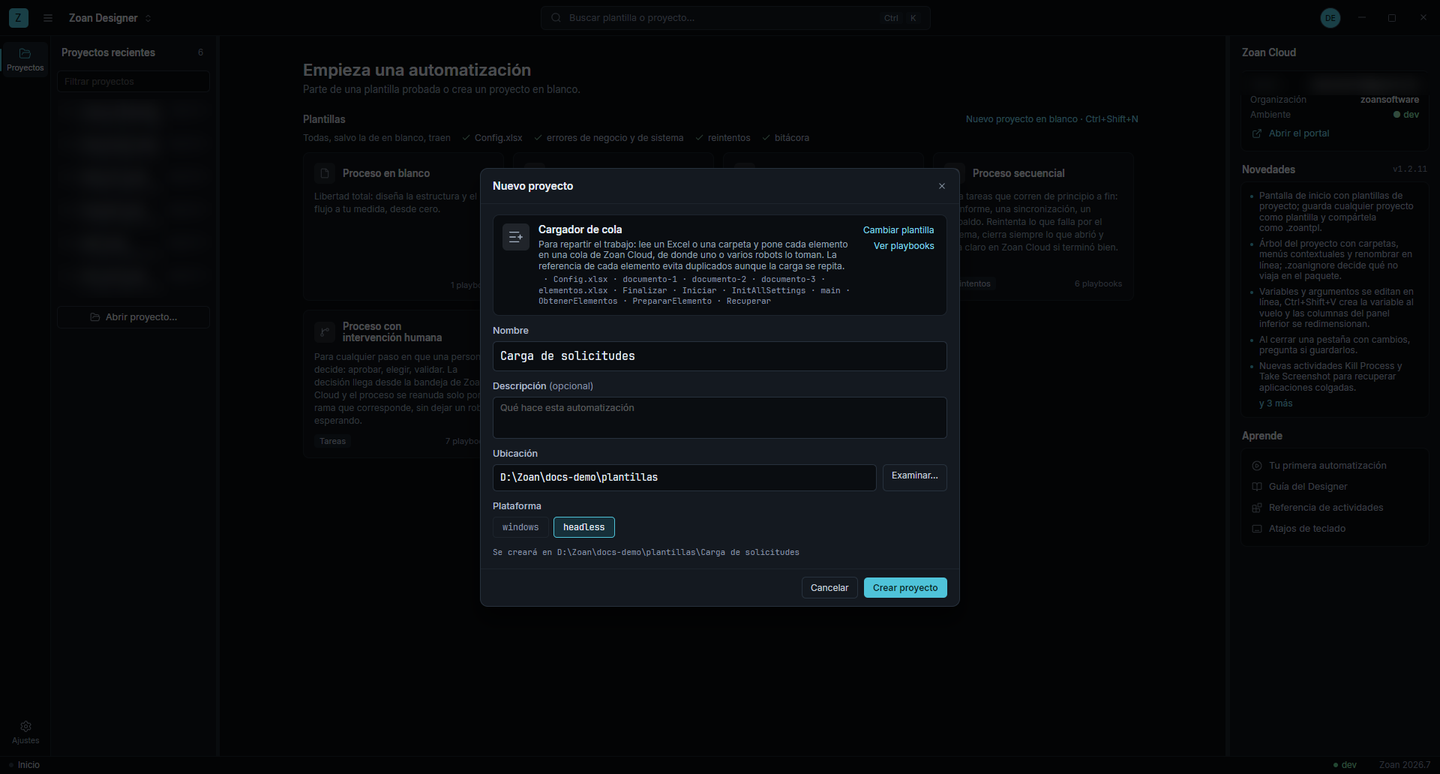
- Click the template card. New project opens with its description and the list of files it brings (See playbooks shows them before creating).
- Type the name, the location and, optionally, a description.
- Choose the platform:
windowsorheadless. It cannot be changed later (see Project settings). - Click Create project. It opens with
main.playready to run.
The project remembers which template and version it came from (in project.zoanproj), but from then on it is yours: changing it does not touch the template.
What each template does and which keys it brings: Built-in templates.
The Config.xlsx file
Section titled “The Config.xlsx file”Values that change between environments or that the business tunes (paths, queue names, roles, retries) are not written in the playbooks: they go in Data/Config.xlsx, an Excel file anyone can tune without touching the flow:
| Sheet | Purpose |
|---|---|
| Settings | What you tune per project or environment: sources, queues, folders, roles. |
| Constants | Technical values that rarely change: number of retries, waits. |
Each sheet has three columns: Name, Value and Description. A key repeated in a later sheet overrides the earlier one.
At the start, main invokes InitAllSettings, which reads the file and leaves everything in the Config variable. main passes it to the other playbooks through their in_Config input. Each value is read like this:
str(Config["Cola"]) // in main: texttoInt(in_Config["ReintentosSistema"]) // in an invoked playbook: number- Add a key: add a row to Settings (or Constants) and read it with
Config["YourKey"](orin_Config["YourKey"]). It does not need to be declared anywhere else. - It travels in the package:
Config.xlsxis published with the process, so the unattended robot uses the same values you tested. For another environment, change the file and publish a new version. - No secrets: passwords and keys go in Credentials, not in the spreadsheet.
Business and system errors
Section titled “Business and system errors”Every template tells the two kinds of error apart:
- Business error: a piece of data prevents going on (an empty field, a value out of rule). Retrying does not fix it. Raise it with Throw and the Business exception error type (
BusinessRuleException): the item is flagged and the process moves on to the next one. - System error: the application did not respond, the network went down. Recuperar runs and the work is retried according to
ReintentosSistemaandEsperaReintentoMs.
Finalizar always runs in the finally, even when someone terminates the execution. And if someone asks to Stop, the item-based templates finish the current item and close cleanly (see Should Stop).
Your team’s own templates
Section titled “Your team’s own templates”Any project can become a template so your team starts the same way.
Save a project as a template
Section titled “Save a project as a template”With the project open: ☰ → File → Save as template, or right-click the project root in the Project panel.
- It saves what would travel in the process package:
.zoanignoreis honored andproject.zoanprojis not copied. - It takes the project’s name, description and platform.
- It shows up in the gallery next to the built-in ones. Saving it again with the same name updates it.
If you want the card to show tags, “how it works” steps or an icon, put a template.json at the project root (same format as the built-in templates). That file is the template’s manifest and is not copied into the projects created from it.
Share it: export and import
Section titled “Share it: export and import”- Export: right-click the template card → Export template…. It creates a
.zoantplfile you share like any other file. It also works with the built-in templates. - Import: in the gallery, Import template card → pick the
.zoantpl. It is added to your templates; importing the same one again updates it. - Remove: right-click one of your own templates → Remove template (it goes to the recycle bin). Built-in templates cannot be removed.
Your own templates live in your user folder (%APPDATA%\Zoan\templates). Right-click one → Show in Explorer takes you to the folder.